- You'll receive an email from either Heather Stoner (heathers@franchiseupdate.com) or Alison Shelton (alisons@franchiseupdate.com) on November 12 with your MUFC Portal Login Link.
- Click the link in the email to create your password and access your portal.
- Didn't receive it? Email sponsors@franchiseupdatemedia.com to request access.
- Once logged in, you can invite additional team members. TIP: Only invite those who will be responsible for managing, tracking and completing tasks / submitting materials. The system WILL send out weekly reminder emails. Limiting users helps reduce unnecessary email traffic. If other team members need specific details, we suggest that you share that information internally rather than adding them as users to the portal.
- Log in to your portal.
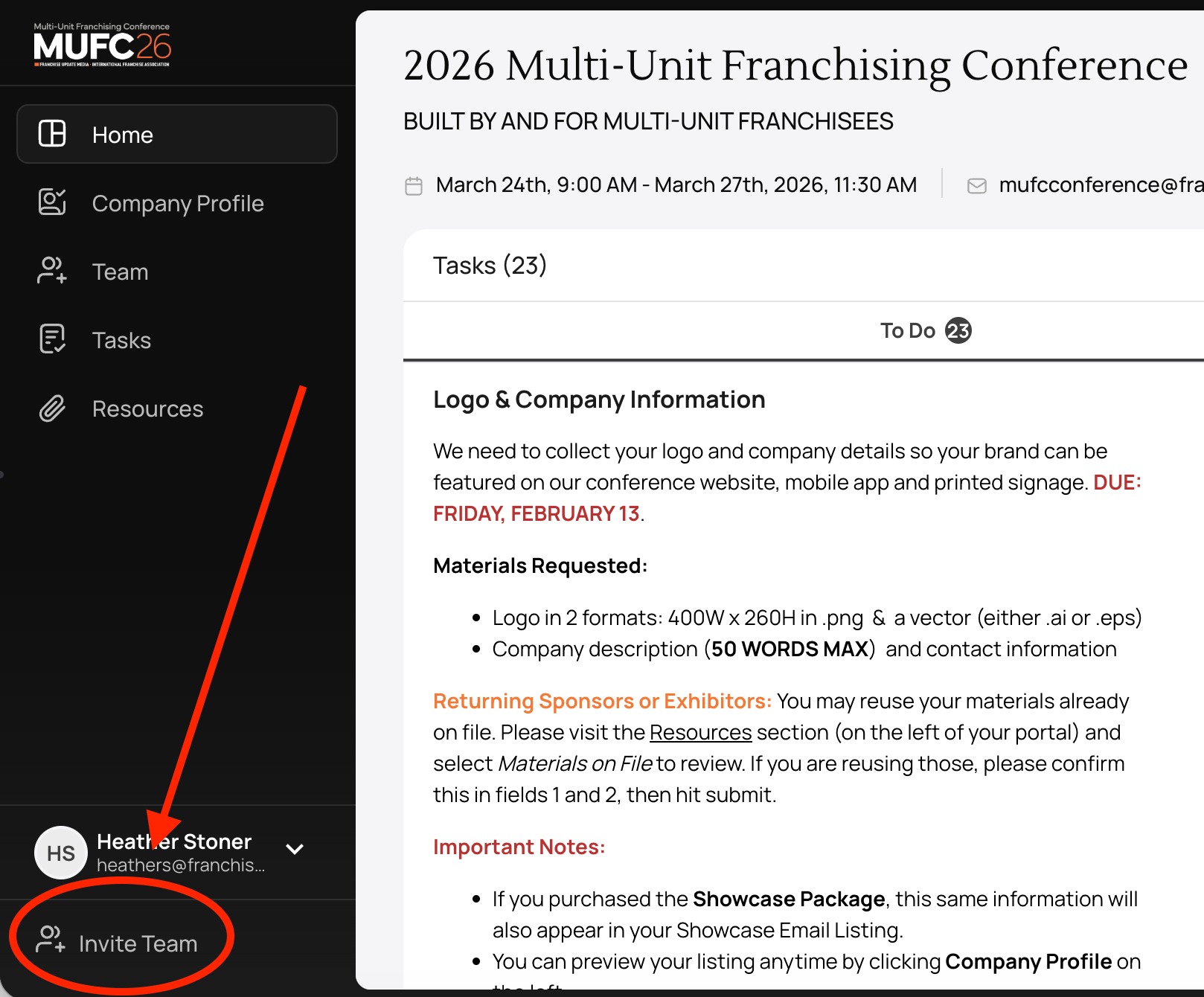
- From your Dashboard, click INVITE TEAM on the bottom of the left sidebar (see image above).
- Enter the person's email address and click SEND.
- The Dashboard or (Home page) is your landing screen after login.
- Here you'll see in overview of your assigned tasks, team members and recent activity.
- Action Items are referred to as Tasks within your portal.
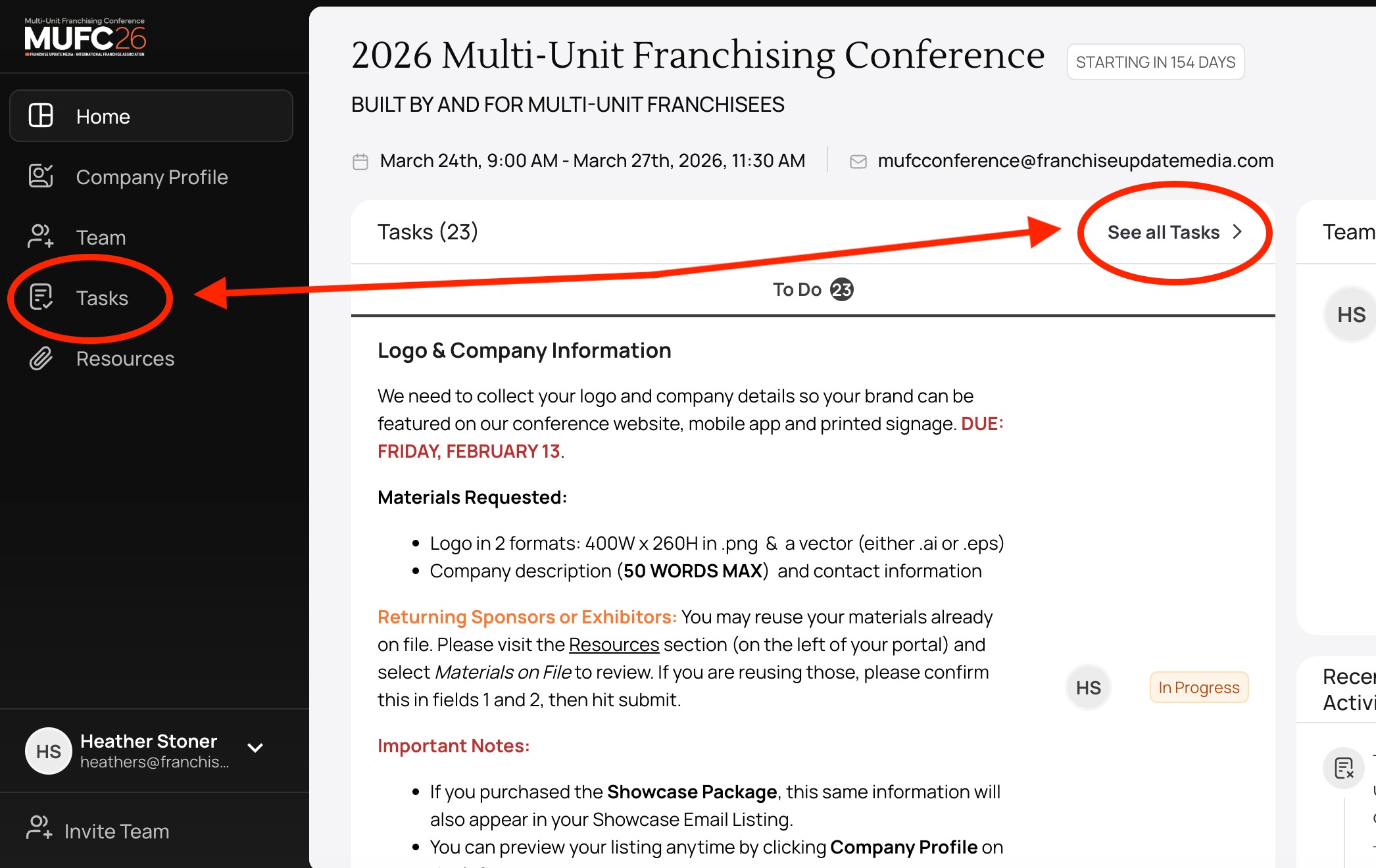
- Click Tasks on the left sidebar, or select See All Tasks from the Home Page (see image above).
- Your Tasks are shown in chronological order, with the earliest due date at the top.
- Each task shows it's due date, progress and status.
- To open a Task, click its title — it will expand on the right side of the screen. You may need to scroll to view the full description or upload fields.
- IMPORTANT NOTES:
- Some Tasks require larger file submissions which must be emailed due to size limitations. Those tasks include a checkbox to mark once you’ve submitted via email — please select it to avoid ongoing reminders.
- Always click Submit after completing a task. If the Submit button isn’t clicked, your task won’t be received or marked as complete.
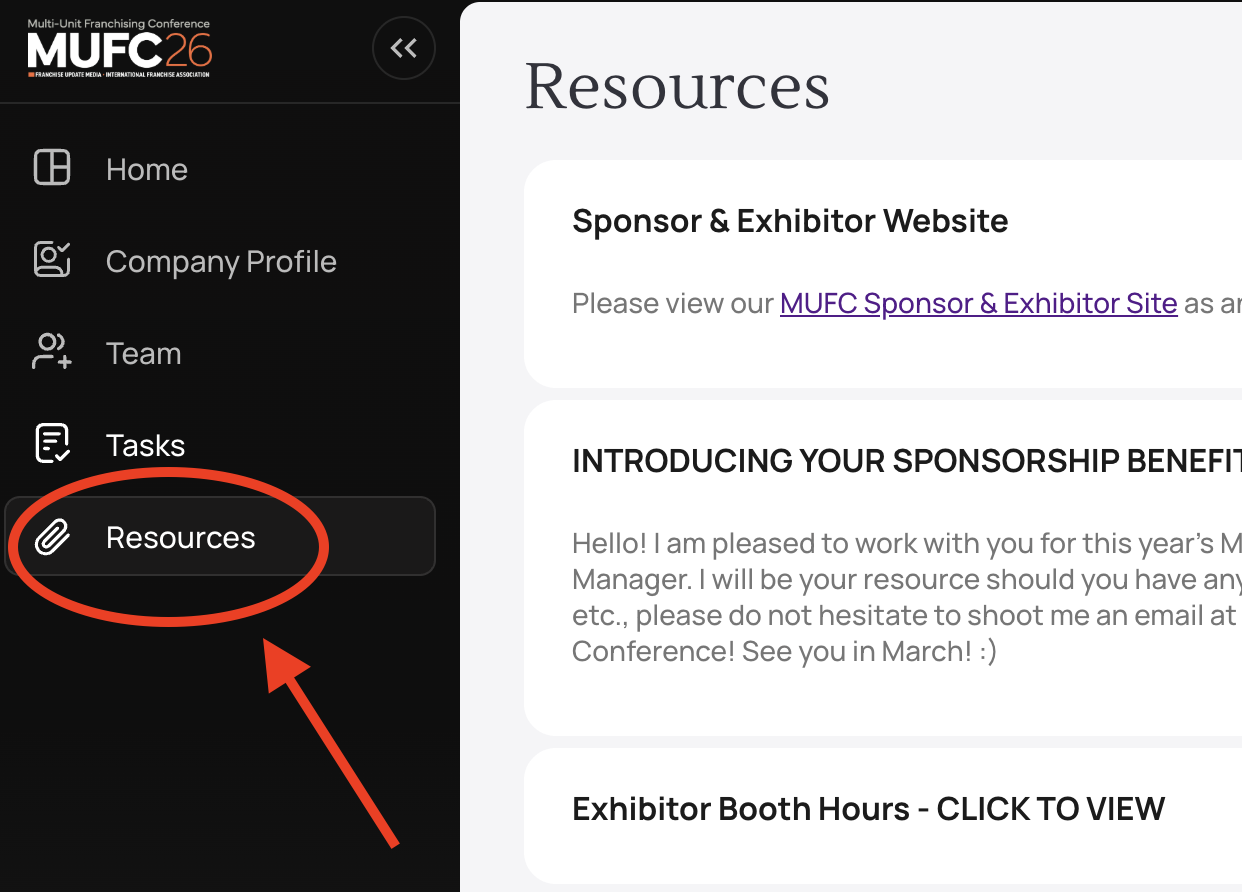
- The Resources section on the left sidebar (see image above) houses all key conference materials & information, including:.
- A link to our Sponsor & Exhibitor Website
- Booth & Shipping Information (if applicable)
- The attendee list schedule
- General Information, and more.
- Please visit this tab periodically for new uploads or updates throughout the planning process.
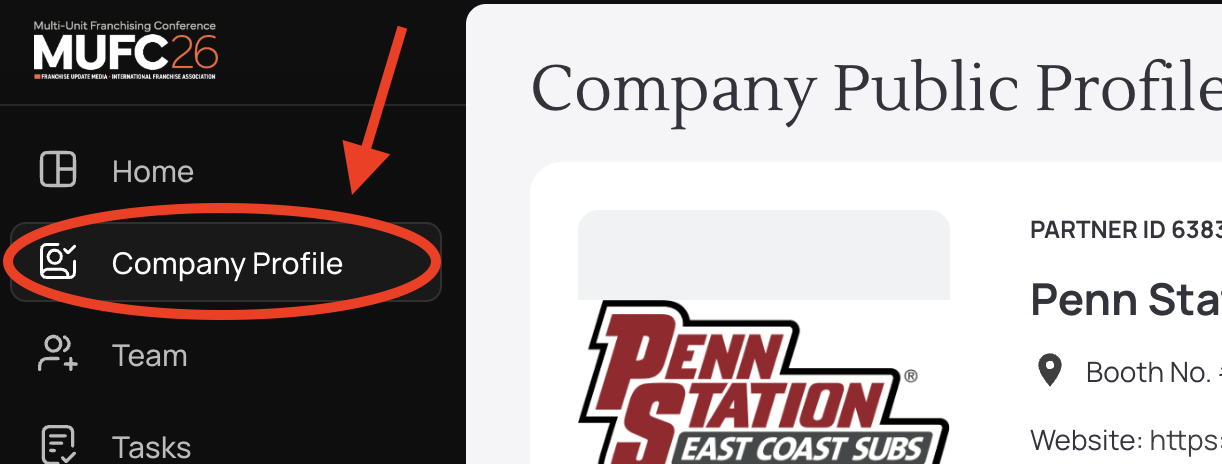
- The Company Profile section displays your company listing information which is public on our conference website and mobile app.
- Here you can view your logo, company name, website, contact email and company description.
- If any of this information is incorrect, complete the Task titled "Logo & Company Information." All updates will be reviewed and approved by our team before appearing publicly.
- The Team section, lists everyone with access to your portal.
- You can add additional team members within this tab by clicking on the Add Team Members button (shown above) and entering their email.
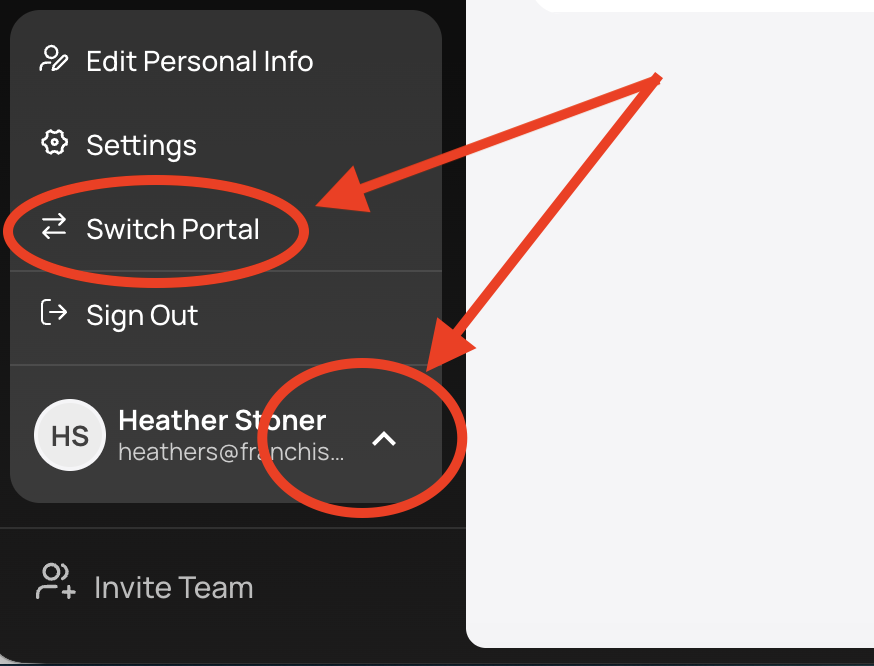
- If you manage more than one portal, click on the small arrow next to your name in the lower left hand area of your portal's sidebar, a menu will pop up with a few options.
- Click on Switch Portal and you can choose the portal you wish to access.
Sponsor & Exhibitor Portal Guide
We're once again using our user-friendly Sponsor & Exhibitor Portal to help you keep track of conference action items, submit materials and access resources - all in one place! Please use this page as a guide to using our portal system for MUFC 2026.
PLEASE NOTE - Our portals have been updated this year — see instructions below for what’s new!
**If you have any questions or experience any issues that are not addressed on this page, please contact sponsors@franchiseupdatemedia.com**
How to Access Your Portal?
How Do I Invite Additional Team Members to My Portal?
What is the Dashboard?
Managing Action Items (AKA Tasks)?
TASK Example
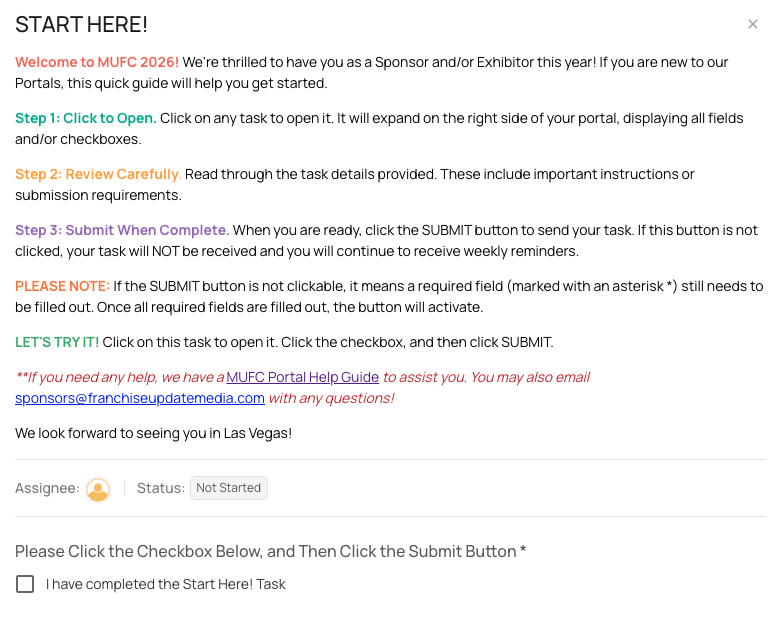
See the screen shot above to view what a TASK looks like. This Task will be the first one in your portal for you to complete. It will provide a quick explanation on how tasks work, how to complete and how to submit. If this is your first time using the MUFC Portal, please do not skip this step!
What Are Resources?
What is the Company Profile?
What is the Team Section?

Managing Multiple Portals